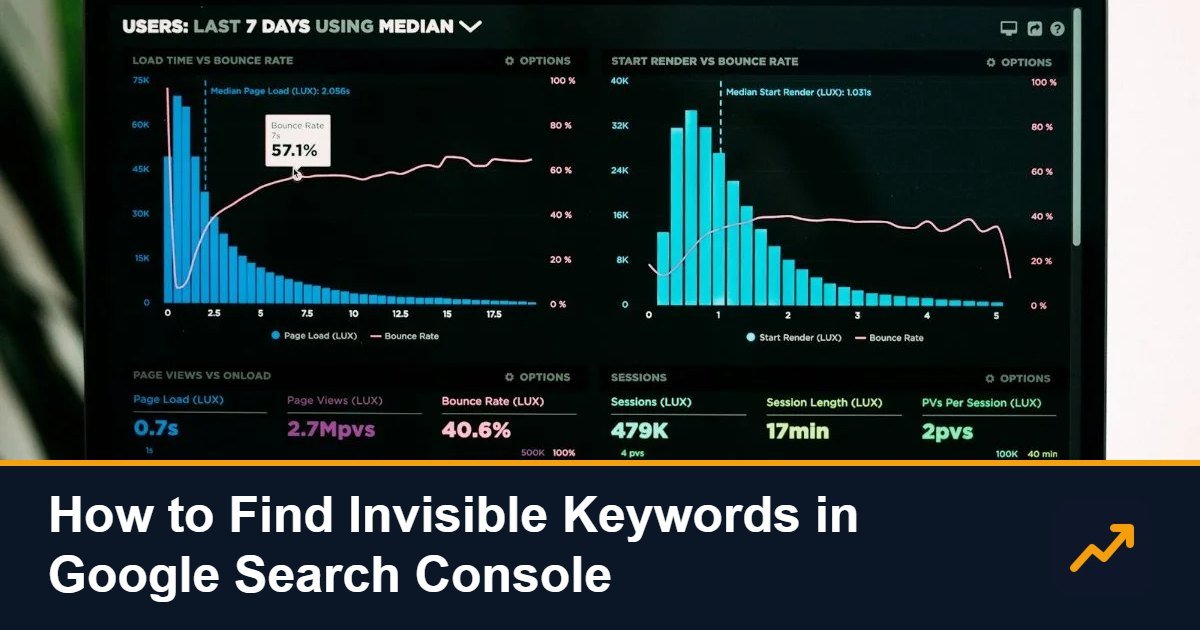


Do you want to know what is wrong with your website, but you do not want to pay for a tool? Then you need an SEO audit checklist. An SEO audit is a structured check of whether Google can find, read and understand your pages, and this post gives you a step-by-step list that uses only free tools: Google Search Console, PageSpeed Insights, your browser and the site: search. So, let’s start.
What is an SEO audit?
An SEO audit is a health check for your site. You look at a fixed list of things, write down what is broken, and fix the biggest problems first. It does not need paid software. Google explains the basics in its own SEO Starter Guide, and every step below follows that idea: make pages easy to crawl, easy to understand and easy to use.
We work on sites such as startupindiatoday.com and therecipeworld.com, and the same short list has found real problems for us. We will share those results below, and we will also say what we cannot prove.
What do you need before you start?
- A Google account that is verified as an owner in Google Search Console
- The free PageSpeed Insights page
- Any normal browser (use a private window to see the site like a visitor)
- A notebook or spreadsheet to write down each problem and its fix
How to do an SEO audit step by step?
Work through these seven steps in order. Each one takes a few minutes on a small site.
- Check that your pages are indexed. In a browser, search
site:yourdomain.com. If nothing appears, Google has not indexed the site. The number shown is only a rough guide, so then open the Page indexing report in Search Console for the real counts and reasons. - Inspect your most important URL. Paste your homepage into the URL Inspection tool in Search Console. It tells you whether the page is on Google and whether Google could crawl it. Google documents this tool in the Search Console Help.
- Check your sitemap. Open the Sitemaps report and confirm that your sitemap was read without errors. If you have not submitted one, our guide on how to submit a sitemap will help.
- Read the Performance report. Look at queries, pages, clicks, impressions and average position for the last 3 months. Pages with many impressions but no clicks usually need a better title and meta description.
- Test speed on mobile. Run your homepage and one post through PageSpeed Insights. Look at the mobile tab first, and note LCP, INP and CLS. Google’s good thresholds are LCP up to 2.5 seconds, INP up to 200 milliseconds and CLS up to 0.1.
- Look at the page like a visitor. Open the site on your phone. Is the text readable, do the buttons work, and does a popup or banner cover the content? Then view one post and check that it has one clear title and sensible headings.
- Check titles, descriptions and links. Does each page have its own title and meta description? Do your posts link to each other? Click a few links to see if any lead to a 404 page.
What does the finished checklist look like?
Copy this table into a notebook or spreadsheet and tick it off. It is the whole audit on one screen.
| Area | Free tool | What to look for | Done? |
|---|---|---|---|
| Indexing | site: search, Page indexing report | Key pages are listed; no unexpected “Excluded” reasons | [ ] |
| Single page | URL Inspection | Page is on Google; crawl allowed | [ ] |
| Sitemap | Sitemaps report | Status “Success”; right URL | [ ] |
| Search results | Performance report | High impressions with low clicks flagged | [ ] |
| Speed | PageSpeed Insights | LCP, INP and CLS inside the good range on mobile | [ ] |
| Mobile view | Your phone | Readable text; nothing blocks the content | [ ] |
| Titles and descriptions | Browser tab, page source | Unique and accurate on every page | [ ] |
| Links | Browser | No broken internal links; posts link to each other | [ ] |
What did we see on our own sites?
On startupindiatoday.com the mobile PageSpeed score went from 74 to 94 and LCP from 6.2 s to 2.7 s after we turned off a preloader and scroll animations. You can read the details in our post on preloader animations and Core Web Vitals. On therecipeworld.com the mobile score moved from 58 to 77 on the homepage and 87 on a post. Its 90-day Search Console report showed 951 impressions, 1 click and 391 queries, with fish queries at positions 55 to 90. That one table row, many impressions and almost no clicks, is exactly the kind of thing step 4 finds. We also found outdated WordPress core, with more than 30 known flaws, on two sites during checks like these.
Common SEO audit mistakes
- Chasing a perfect score. A PageSpeed number is a guide. Fix what the report flags for real visitors first.
- Trusting the site: count. It is a rough estimate. Use Search Console for real numbers.
- Fixing everything at once. Pick the three problems that block indexing or hurt visitors most.
- Never repeating the audit. Run it again after big changes, and otherwise every few months.
- Changing many things and not writing them down. Then you cannot tell what helped.
Where are we less sure?
Our numbers come from two small sites and we cannot say a score change caused a ranking change. Our opinion is simple: start with indexing, because a page that is not indexed cannot rank, however fast it is. Speed and titles come second.
SEO audit checklist FAQ
How long does a free SEO audit take?
For a small site, the seven steps above fit into one or two hours. Larger sites take longer because there are more pages to review.
Do I need a paid tool to audit my site?
No. Search Console shows how Google sees your site, and PageSpeed Insights shows speed. Paid tools mainly save time on big sites.
How often should I audit my site?
Do it after major changes such as a redesign or a new plugin, and otherwise every few months. Google does not set a required schedule.
Sources
- Google Search Central: SEO Starter Guide
- Search Console Help: URL Inspection tool
- PageSpeed Insights
- web.dev: Web Vitals
Next, read our homepage title and meta description checklist to fix step 7 properly.